How To Import Adult Videos Online Web HTML Tutorial
Here, we'll explain you how to import / grab / embed adult videos using the WP-Tube-Plugin Adult Videos Plugin. There are very easy step to import adult videos with single click. Just click the button and import the hundreds of adult videos in few seconds
WP-Admin → WTP(Pro) → WTP Feeds
At the bottom of the page, you will see Buttons "Import Videos From Page 1", "Import Videos From Page 2"....This will import so many adult videos from multiple porn sites listed on that page. From this page you can change feeds settings like "Feed Sources", "Status", "Feed Status", "Import Videos", "Destination Category", "Source Feed URL"
Grab Videos from Single Feed (Specific Site)
If you want to grab videos from specific feeds like Alotporn.com then click the "Import Videos" button on that row. This will grab videos from Alotporn.com only. If you want to grab videos from another feed click the "Import Videos" Button at that feed.
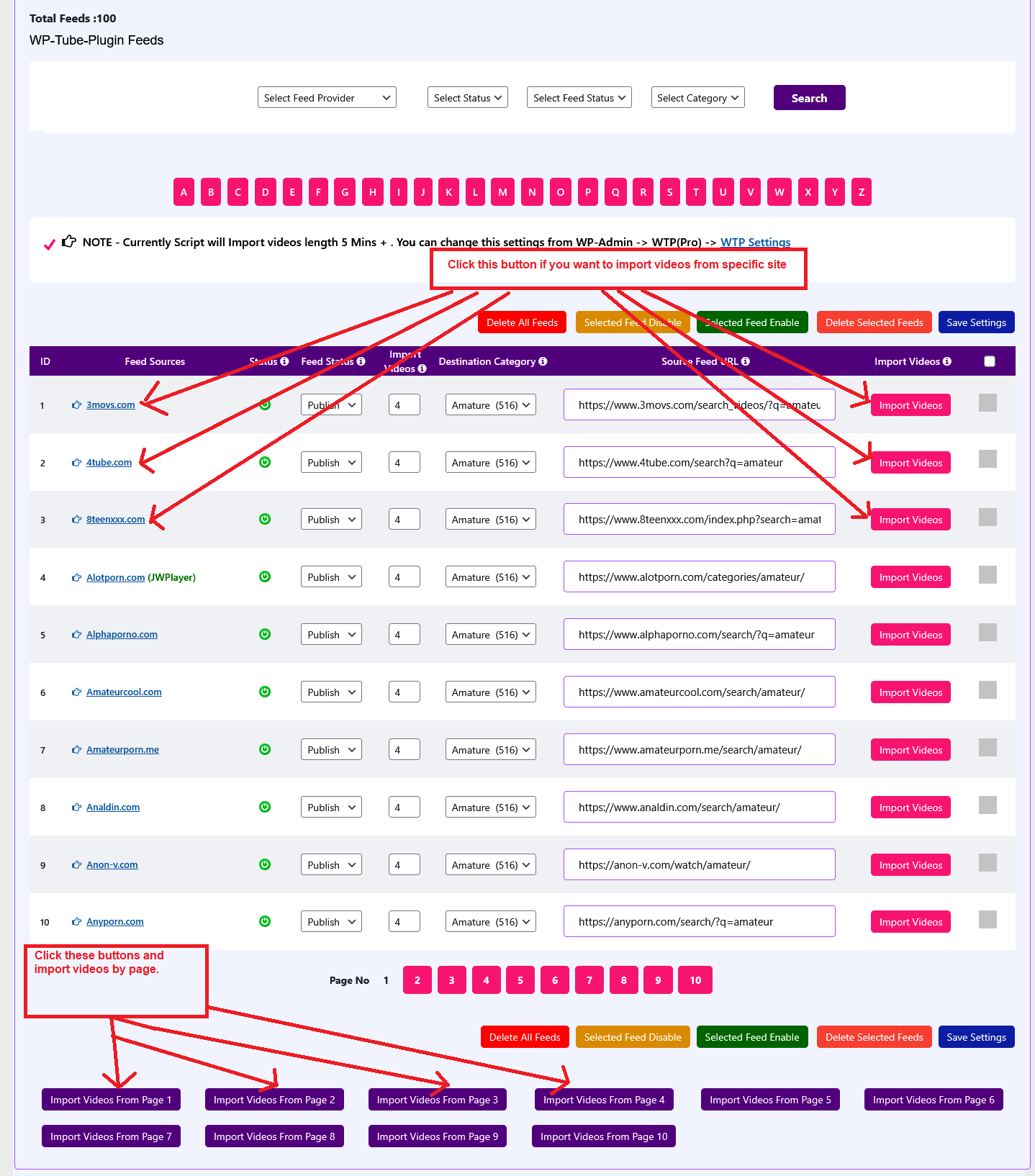
ID: This is just a serial number (1,2……).
Feed Source: This display the feed source provider (e.g., xvideos, redtube, pornhub………)
Status: This field tells the status of the feed Enable/Disable. Green button  tells that feed is Enable and red button
  tells that feed is disable. You can Enable or Disable the feed status by clicking on this button. WP-Tube-Plugin grabs videos from enabled feeds only. Wp-tube-plugin does not grab videos from disable feeds. If you does not want to grab videos from a specific feed then you can change status disable .
Feed Status: This is the status of the videos for specific feed ( Publish / Draft/ Pending ). Default feeds status is Publish. Videos will be published automatically on site when script grab videos. If you set Feed Status as Draft then videos Save As Draft and you need to manually published the Draft videos. Pending is same as Draft.
Max Videos: this number indicates the number of videos to be grabbed from an each feeds. Default number is (4) and maximum number you can enter is (99).
We prefer you to grab less number of videos from each feeds because less number of videos does not LOAD TO YOUR SERVER CPU and does not effect to your MYSQL SERVER.
If you grab large number of videos from each feeds then script take time to grab videos and it LOAD TO YOUR SERVER CPU and on your MYSQL SERVER too. After some time when you have large videos in your database then it may create problem when you grab videos. So avoid to grab large number of videos.
Select Destinatopn Category: You can select the videos destination category to be saved. Videos will be saved in selected categories. You can make new WordPress categories from WP-Admin → Posts → Categories (/wp-admin/edit-tags.php?taxonomy=category) and these categories will be display in this drop down.
Source Category URL: here you can paste the source category URL from which you wants to grab videos. Example you want to grab videos from xvideos.com (anal category) then open site xvideos.com and go to anal category URL (http://www.xvideos.com/c/Anal-12) copy this URL from source website and paste this on field "Source Category URL"
You will find checkbox  at end of each feeds. If you make any changes in any feeds then you have to check the checkbox
  infront of that feed and click the "Save Settings" button
  on header / footer.
NOTE- if you want to make any changes in feeds (like Feed Status, Max Videos, Select Category, Source Category URL) first make changes as you want on feed then don’t forget to check the checkbox in front of that feed and click the "Save Settings" button on header or footer. If you does not check the checkbox and click save settings then feed will not update.